
Google Pages & Badges
Newest Google+ Release Huge For SEO
Google has been releasing new features for their Google+ social media platform consistently over the past couple months now, but they have rocked the SEO world with their release of Google+ Pages—and you’ll want your Google+ Page Badge in place quickly to take advantage of this new tool.
First things First – You Gotta Create your Google+ Page!
Promise yourself that you or an assistant will update that page every day, come up with a plan, and make it happen, because Google+ Pages are already factored into Google’s Search results, and you do not want to lose that kind of SEO benefit!
So, you’ve created your Google+ page (and added some great pictures, too, right?) and now you are ready to link it to your website? You have to add some code to the header of your template, choose the Google+ Page Badge that you want to have on your site, and place the code where you want it on your site.
What’s hidden in those steps is the fact that the snippet of code you’ll place in the header of your site identifies your site to Google, verifies your site’s identity, and ties your Page into more search results. This is all, of course, huge for SEO, will help your business or branding social media branding efforts online.
So here are the steps you need to take to connect your Google+ Page to your site with the handy, dandy Google+ Page Badge:
1. Go to your Google+ Page and copy the long string of numbers in your main page address, like so:

2. Then go to this Google+ Page Badge customization page and choose the type of badge you want (I chose the large single button so it would mix with my already placed social media icons)
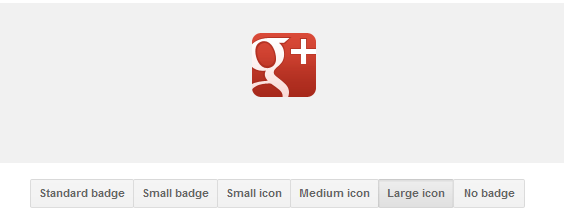
3. You will have the option to adjust the code depending on the type of badge you choose to display, and your code snippet will automatically update, until you are left with some code like the following:
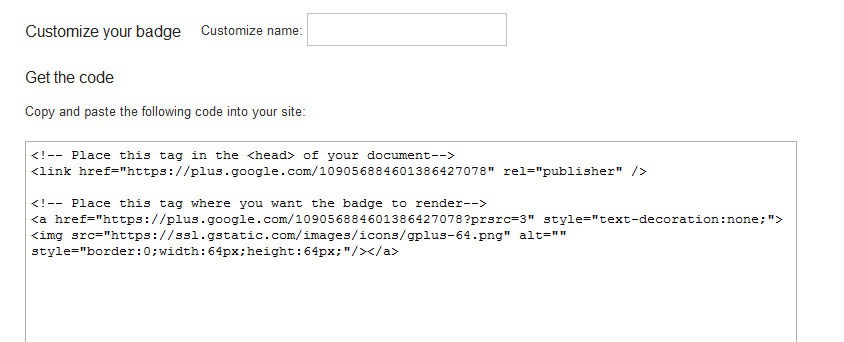
4. Easy enough, you will follow the instructions conveniently placed within the code, placing the top portion in the head of your template file editor and the bottom portion of the code where you want your badge to display.
Here’s how Google+ Page Badge for my Social Media Branding with Kim Garst Page looks after adding it:

About Author


10 thoughts on “How to Create Google Plus Badge for Your Website”
You are most welcome, Jenn!
ooohhh, thank you, John! I have run into this a number of times and could not resize so I totally appreciate the tip!
I think this works a lot better if you have a Google+ brand page. It displays a lot more information that makes clicking on the bad more enticing than if you were to use a bade for just your personal Google+ account.
Thank you!
Thanks for dropping in.
Thank you! I absolutely am on Twitter! http://twitter.com/kimgarst
No it is not expensive to start a blog. You should buy a domain and invest in some quality branding but otherwise, the biggest expense is your time.
Thank you for teaching this with steps. I was unable to add the badge on my website but now I have successfully embedded the badge.
I am so glad it helped Muhammad! Congrats on getting that badge onto your website!
I am so glad it helped you!